Pomodoro Technique for ADHD: Does It Actually Work?
Does the Pomodoro technique work for ADHD? Often, with changes: shorter or longer rounds, a timer you can see, breaks that end and body doubling. Tools inside.
The Pomodoro technique can work for ADHD, and it often works better with changes. A visible timer with a fixed end can make a task easier to start and time easier to notice; the classic 25-minute round and 5-minute break are just starting points, and some people find shorter rounds easier for getting going, longer ones better when the work is flowing, and breaks easier to end when they are timed too. On a Mac, NotchOwl, a notch planner I make, keeps a focus timer in view beside the notch next to today’s tasks; it doesn’t time breaks or count rounds, so it suits the looser version of the method described here.
This is practical advice about timers and work habits, not medical advice. ADHD is a neurodevelopmental condition, and NIMH lists medication and psychosocial interventions as its standard treatments; a timer is not one of them. NotchOwl is mine, so its section says plainly where other tools do the job better. Prices and features of the other tools come from their websites and App Store listings in November 2026.
What the Pomodoro technique is
Francesco Cirillo began developing the Pomodoro Technique in the 1980s as a university student, by challenging himself to concentrate for just two minutes with a tomato-shaped kitchen timer (pomodoro is Italian for tomato). His site describes the core of it as focusing on one activity, handling interruptions, taking restorative breaks and observing how it goes.
The classic rhythm, as Cirillo’s own classic timer page puts it, is to wind the timer to 25 minutes and work, then wind it again for a 5-minute break. Many Pomodoro apps, such as Be Focused, also add a longer break after a set number of rounds. In practice:
- Pick one task.
- Set a timer for 25 minutes and work only on that task.
- When something else comes up, write it down and go back to the task.
- When the timer rings, take a 5-minute break away from the work.
- After a few rounds, take a longer break.
The Pomodoro technique can help with ADHD as a practical tool, not a treatment: a visible timer can make starting easier and time easier to notice, especially if you adjust the round length, time the breaks and keep the timer where you can see it.
Why the Pomodoro technique can help with ADHD
NIMH describes inattention in ADHD as difficulty paying attention, keeping on task or staying organized. The Pomodoro technique doesn’t change any of that, but it moves some of the work out of your head and onto a clock, which is why it shows up in ADHD self-help. The ADHD strategies page from Leicestershire Partnership NHS Trust, for example, suggests working for 25 minutes and then taking a five-minute break, and says timers and alarms give structure so you don’t have to hold it in your head.
In practical terms, a timer can help like this:
- It makes time visible. A countdown on screen shows how much of the block is left, so twenty minutes of email is harder to miss.
- It makes starting smaller. “Work on the report” has no end; “work on the report until the timer rings” does. A finite block is easier to begin.
- It puts a stop in the day. Scheduled breaks keep a session from turning into four hours without water, food or a look at the calendar.
- It keeps one task in front of you. One task per round, and a written list for everything else, means a stray thought gets parked instead of followed.
Jessica McCabe’s How to ADHD channel has a short video on getting things done with ADHD:

Why it can backfire with ADHD
The same rigid timer that helps one day can get in the way the next. The common problems:
- It interrupts hyperfocus. When you finally get absorbed in hard work, a bell at minute 25 can break the spell, and getting back in may take longer than the break.
- 25 minutes is too long to start. On a low day, committing to 25 minutes of a dreaded task can feel as impossible as the task itself.
- The break never ends. Five minutes on your phone becomes forty. An untimed break is one common way a Pomodoro day falls apart.
- Clock-watching. For some people a countdown in view is motivating; for others it becomes the thing they watch instead of the work.
- Counting rounds turns into keeping score. If you planned eight rounds and did three, the method can feel like another thing you failed at.
None of these means the method doesn’t work for you; they mean the defaults don’t. The adjustments below address them one by one.
What the research says, and what it doesn’t
There is little research on the Pomodoro technique itself. The best-known study is small and wasn’t about ADHD. In Biwer and colleagues (2023), published in the British Journal of Educational Psychology, 87 bachelor’s and master’s students at a Dutch university studied with one of three break schedules: a 6-minute break after every 24 minutes (the Pomodoro-style group), a 3-minute break after every 12 minutes, or breaks whenever they chose.
The students who chose their own breaks studied longer at a stretch and took longer breaks, and reported more fatigue and distraction and less concentration and motivation than the two fixed-break groups. The amount of work done and the effort invested didn’t differ between the groups. The study didn’t report on ADHD, and one study of 87 students doesn’t settle anything, so treat the Pomodoro technique as a reasonable experiment: try it for a week, change one thing, and keep what works.
8 ways to adapt the Pomodoro technique for ADHD
1. Start with a shorter round
If 25 minutes feels like too much, set 10 or 15. The point of the first round is to start; you can always set a longer one next. In the study above, task completion didn’t differ between students on 12-minute and 24-minute blocks, so a short round is not cheating.
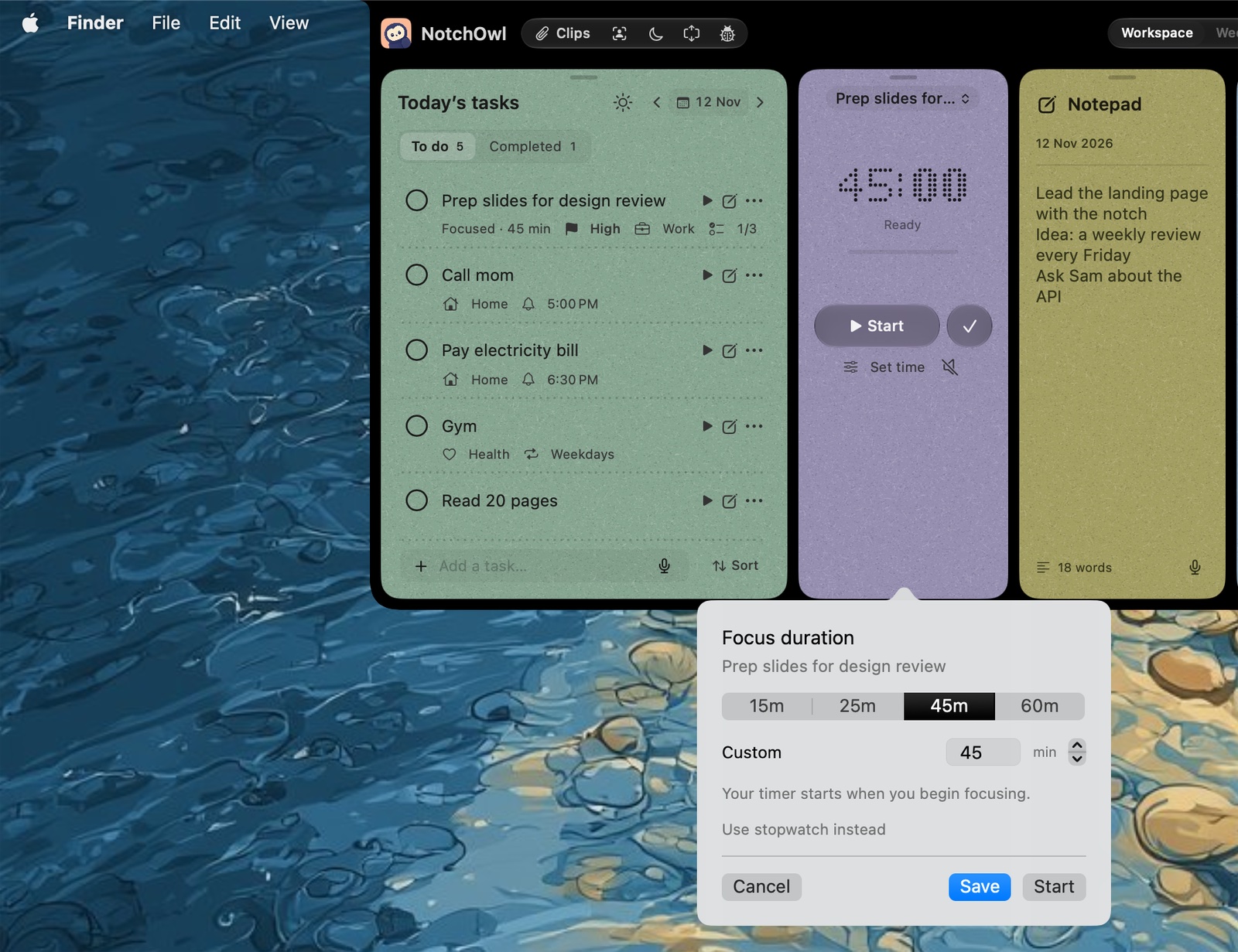
Pick a length in one click: 15, 25, 45 or 60 minutes, your own, or a stopwatch instead.
2. Go longer when it’s working
When a task absorbs you, use 45 or 60 minutes, or let the timer ring and keep going. Treat the bell as a check-in: are you still on the right task, and have you had water? If yes, continue. Take the break at a natural stopping point rather than mid-sentence.
3. Use a stopwatch when you can’t estimate
For open-ended work, such as tidying a folder or answering a backlog of messages, count up instead of down. Seeing that 40 minutes have passed is often more useful than a countdown that ended 15 minutes ago.
4. Keep the timer where you can see it
A timer buried in a window or a phone in another room doesn’t make time visible. Put it in the menu bar, beside the MacBook notch, or on the desk as a physical timer. Choose a timer that lives on screen over one you have to open.
5. Time the break too, and choose it in advance
Decide what a break is before you start: stand up, refill water, stretch, step outside. Set a timer for the break as well, and keep the phone and your feeds out of it if they tend to swallow the afternoon. A break that starts on time but never ends is one common way the method stops working.
6. Park distractions in a list
Keep a notepad or capture box open. When you remember an email you meant to send, write one line and go back to the task. Cirillo’s method counts handling interruptions as part of the technique, and a written list is the simplest way to do it.
7. Make each round one small, specific task
“Write the first paragraph” is easier to start than “write the report”. Breaking a task into small steps is one of the NHS page’s suggestions too. If you plan your day around rounds, give each round one task and write its first step next to it. How to prioritize tasks covers picking which task gets the first round.
8. Add another person
Body doubling, working while someone else works, pairs well with a timer. Focusmate matches you with another member for a 25, 50 or 75-minute video session; you both say your goal at the start and work with cameras on, and the session ends on time. One Focusmate session is a Pomodoro with accountability built in.
| Variation | Work | Break | Try it when |
|---|---|---|---|
| Classic | 25 minutes | 5 minutes | You’re learning the method |
| Short start | 10 to 15 minutes | 3 to 5 minutes | Starting is the hard part |
| Studied short blocks | 12 minutes | 3 minutes | You want a schedule that has been tested (2023 study, with students, not people with ADHD) |
| Long block | 45 to 60 minutes | 10 minutes | The work absorbs you and you don’t want to be interrupted |
| Stopwatch | Count up until a natural stop | Timed, chosen in advance | You can’t estimate the task |
| Body doubling | 25, 50 or 75 minutes on Focusmate | Between sessions | You need someone else there to get going |
Pomodoro timers and tools that suit ADHD
Quick picks
- Best for a focus timer tied to today’s tasks, always in view on a Mac: NotchOwl, $12 once
- Best for classic rounds with long breaks: Be Focused, free or Pro from $2.99 a month
- Best free menu bar timer: TomatoBar
- Best for body doubling: Focusmate, 3 free sessions a week
- Best physical visual timer: Time Timer, from $24.95
- Best for a timer you already have: the Mac’s Clock app, free
| Tool | Price | Where the timer lives | Times breaks and rounds | Helps with | Platforms |
|---|---|---|---|---|---|
| NotchOwl | $12 once, up to 3 Macs | Beside the notch, in the menu bar menu and a desktop widget | No | Starting a task from today’s list; nudges back from distracting apps | Mac (Apple silicon, macOS 14+) |
| Be Focused | Free; Pro $2.99/mo, $19.99/yr or $39.99 once | Menu bar and window | Yes, short and long breaks | Strict rounds; app and website blocking with Pro | Mac (macOS 12+), iPhone, iPad |
| TomatoBar | Free, open source | Menu bar only | Work and rest intervals | A timer with nothing to set up | Mac |
| Focusmate | Free 3 sessions/week; Plus $8/mo yearly or $12 monthly | Video session with a partner | Session length only | Body doubling and accountability | Online, camera on |
| Time Timer | From $24.95 | On your desk | No | Seeing time pass as a shrinking red disk | Physical timer, plus an app |
| Clock app | Free, built in | Clock window and notifications | No | Quick timers and several at once | Mac (macOS 13+) |
NotchOwl: a focus timer beside the notch, next to today’s tasks
NotchOwl hangs today’s tasks, a focus timer, a daily notepad and your calendar from the MacBook notch. Hover the notch or press Option–N, pick a task and start a countdown of 15, 25, 45 or 60 minutes, your own length, or a stopwatch; you can also start one with no task at all. Once it runs, the time stays visible beside the closed notch over whatever app you’re in, which is the “keep the timer where you can see it” rule built in.
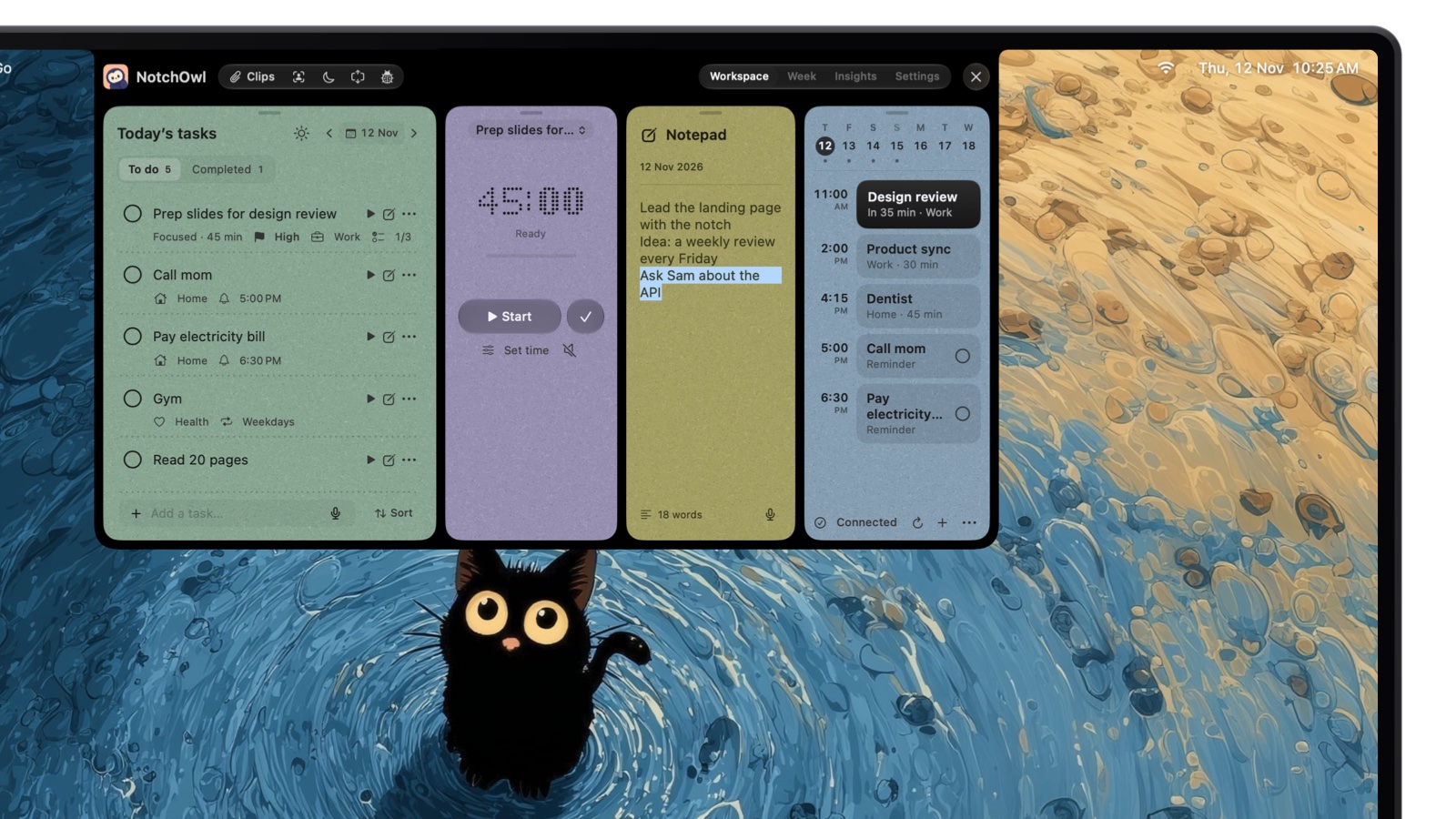
The timer sits between today’s tasks and the notepad; select a line there and press Command–Return to make it a task.
The rest of the setup matches the adjustments above:
- Check-ins instead of hard stops. You can pause, resume or add 5 minutes, and when time is up NotchOwl offers Keep going, Take a break or Mark done.
- A place to park distractions. The daily notepad saves as you type, and Command–Return turns a line into a task.
- A nudge back. List the apps you drift to in Settings › Focus; opening one mid-session brings the owl out with Back to work or 5 more minutes. It nudges, it doesn’t block.
- Sound and settings that start with the session. NotchOwl can play brown noise, pink noise, rain or ocean sounds, and run a Shortcut as a session starts and ends, such as one that turns Do Not Disturb on and off.
- Honest numbers. The timer pauses while the Mac sleeps, and Insights counts only active focus time, along with completed tasks, your streak and your peak hours.
One user put it this way on X:
the focus timer sitting beside the notch fits way too well
What it doesn’t do matters for Pomodoro purists: Take a break simply ends the session, because NotchOwl doesn’t time breaks, count rounds or schedule long breaks, so you set the break yourself (the Clock app or Siri can time it). It doesn’t block apps or websites either.
- Price: $12 once for up to 3 Macs (an early-bird price, normally $39), with lifetime updates and a 7-day money-back guarantee. There is no free tier or trial.
- Requirements: an Apple silicon Mac with macOS 14 Sonoma or later; a notch is optional. There is no iPhone app, so the timer is Mac only, though Apple Reminders sync carries tasks to iPhone and Apple Watch.
- Get it: download NotchOwl or see what the license includes.
Be Focused: best for classic rounds with long breaks
Be Focused, by Denys Ievenko, is the strict version: you set the lengths of work sessions, short breaks and long breaks, and how many rounds come before a long break, and it times all of it for you. Right-click its menu bar icon to start, pause or skip an interval. Pro blocks distracting apps and websites during work sessions in Safari, Chrome, Edge, Opera and Brave. It’s free, and Pro costs $2.99 a month, $19.99 a year or $39.99 once on the US App Store. It needs macOS 12 or later. Be Focused on the Mac App Store
TomatoBar: best free menu bar timer
TomatoBar is a free, open-source Pomodoro timer under the MIT license that lives only in the Mac menu bar, with configurable work and rest intervals, optional sounds, notifications and a global hotkey. There are no tasks and no accounts, which is the point if every extra setting is a reason not to start. Install it with Homebrew (brew install --cask tomatobar) or from TomatoBar on GitHub.
Focusmate: best for body doubling
Focusmate pairs you with another member for a video co-working session of 25, 50 or 75 minutes. You greet each other, say what you’ll work on, keep your camera on and get to work; the fixed end works like a Pomodoro timer. The free plan includes 3 sessions a week, and Plus, with unlimited sessions, costs $8 a month billed annually or $12 billed monthly, according to Focusmate’s pricing.
Time Timer: best physical visual timer
Time Timer makes desk timers with a red disk that disappears clockwise as time runs out, so you see the time left at a glance without reading numbers. Models include the Original 8" and 12" and the MOD; the MOD Home Edition costs $24.95 on timetimer.com, and there is also a Time Timer app. A physical timer is useful if a screen countdown turns into clock-watching or if you work away from the computer.
The Mac’s Clock app: free and already installed
The Clock app on macOS Ventura and later has timers and a stopwatch, and Siri can start a timer for you. On macOS 14.2 or later it runs several timers at once, each with its own name and sound (Apple’s Clock guide). It’s an easy way to time the breaks that NotchOwl doesn’t; how to set a timer on a Mac walks through every way to start one.
How to try it for a week
- Day 1–2: run two or three 15-minute rounds a day on one task each, with a timed 5-minute break.
- Day 3–4: move to 25 minutes if 15 felt easy, and keep a distraction list open.
- Day 5: try one long block of 45 or 60 minutes on your hardest task, or one Focusmate session.
- End of the week: keep the length that got you started most often, and drop the parts that felt like scorekeeping.
For a comparison of every Mac timer with prices and blocking, see the best Pomodoro timer apps for Mac. To cut interruptions around the timer, how to focus with ADHD on a Mac covers Focus modes and Screen Time, and the best ADHD apps for Mac compares planners built for ADHD.
Frequently asked questions
Is the Pomodoro technique good for ADHD?
It can be, as a practical tool rather than a treatment. Working against a visible timer with a fixed end can make starting easier and time easier to notice, but the classic 25 minutes can be too long to start or cut into hyperfocus, so some people with ADHD find adjusted lengths and timed breaks easier.
How long should a Pomodoro be if you have ADHD?
Start with whatever length you can begin today: 10 or 15 minutes if starting is hard, the classic 25 if it isn’t, and 45 to 60 minutes for work you get absorbed in. A 2023 study of university students compared 24-minute and 12-minute blocks and found no difference in work done, so pick the length that gets you started.
What should I do if a Pomodoro timer interrupts my hyperfocus?
Treat the end of a round as a check-in, not a stop. If the work is going well, keep going or add time, then take the break when you reach a natural stopping point; use a stopwatch for tasks you can’t estimate. Set a hard limit only for things that have to end, such as a meeting or a meal.
Does research show the Pomodoro technique works?
There is limited evidence. A 2023 study of 87 university students in the British Journal of Educational Psychology found that fixed breaks led to less reported fatigue and more concentration than self-chosen breaks, with the same amount of work done. It did not study people with ADHD.
What is the best Pomodoro timer for ADHD on a Mac?
NotchOwl ($12 once) keeps a countdown or stopwatch beside the MacBook notch next to today’s tasks, but it doesn’t time breaks. Be Focused times classic rounds with long breaks, TomatoBar is a free menu bar timer, and Focusmate adds a real person for body doubling.
Can you combine body doubling with the Pomodoro technique?
Yes. Focusmate sessions last 25, 50 or 75 minutes, so a 25-minute session is one Pomodoro with another person on video. You both say your goal at the start, work with cameras on, and the session ends on time, which gives you the timer and the accountability together.