Mac Timer: How to Set a Timer or Stopwatch on Your Mac
Set a Mac timer with the Clock app, Siri, Spotlight or Shortcuts, use the stopwatch, or keep a countdown in view with NotchOwl in the notch or a menu bar app.
By Aditya Jaiswal, founder of NotchOwl · Updated · 11 min read
The quickest Mac timer is already installed: open the Clock app, click Timers, set a length and click Start, or ask Siri to set a timer for you. What the Clock app doesn’t do is keep the countdown in front of you while you work in other apps; NotchOwl, a notch app I make, keeps a countdown or stopwatch beside the MacBook notch for that, and menu bar timers such as Tock do it from the menu bar. On macOS Tahoe 26 and later you can also start a Clock timer from Spotlight without opening anything, and the same Clock app has a stopwatch with laps.
The steps below follow Apple’s Clock User Guide and Mac User Guide for macOS 27 and say where earlier versions differ. NotchOwl leads the timer apps further down, and since it’s mine, its section lists what it doesn’t do as well. Details about other apps come from each developer’s website or App Store listing in November 2026.
Every way to set a timer on a Mac
Ways to set a timer on a Mac, how to start each one, and what it suits
Method
How to start it
Good for
Needs
Clock app
Clock › Timers › set a length › Start
Kitchen, laundry, several named timers
macOS 13 Ventura or later; several at once on 14.2 or later
Siri
“Set a timer for 20 minutes”
Hands-free timers
Siri turned on
Spotlight
Command–Space, type “Start Timer”
Starting a timer from the keyboard
macOS Tahoe 26 or later
Shortcuts
Clock’s Start Timer action, saved as a shortcut
One-click timers you reuse
Shortcuts and the Clock app
Terminal
sleep 600 && say "Time is up"
Any macOS version, nothing to install
Terminal
Notch app
NotchOwl
A timer tied to your tasks, beside the notch
$12, Apple silicon
Menu bar app
Tock, Horo
A countdown or stopwatch always in view
A free or paid app
MacMost’s video covers much of the same ground in 20 tips, from the Clock app and Siri to Shortcuts, Reminders and Terminal:
20 Tips For Using Timers On a MacMacMost
How to set a timer with the Clock app
Clock came to the Mac with macOS Ventura and lives in the Applications folder. To open it quickly, press Command–Space and type Clock, or click the time in the menu bar and then click the Clock widget.
Open Clock and click Timers at the top of the window, or choose View › Timers.
Set the hours, minutes and seconds.
Optionally type a name, such as “Laundry”, and choose a sound from the pop-up menu below it.
Click Start. Click Pause and Resume as needed, or Cancel to reset the timer.
The timer keeps running if you switch to another app or the Mac goes to sleep. When it ends, a notification appears: click Options on it and choose Stop, or Repeat to run the same timer again. Apple’s steps are in Set timers in Clock on Mac.
Run several timers at once. On macOS 14.2 or later, click the Add button in the top-right corner of the Timers window, then choose Custom Timer to set one up or Presets to start a common length, such as 5 minutes or 1 hour, in one click. Name each timer so you can tell them apart. Click a timer to rename it or change its sound, and click the Back button to see them all.
Restart a timer you use often. Recently used timers are listed at the bottom of the Timers window; click the Start button next to one to run it again.
Stop music at bedtime. In the When timer ends pop-up menu, choose Stop Playing at the bottom of the sound list. When time runs out, playback stops instead of an alert sounding.
Set an alarm instead. If you need a time of day rather than a length, Clock’s Alarms view sets an alarm that can repeat on chosen days, with a label, a sound and an optional snooze.
How to use the stopwatch on a Mac
The stopwatch for Mac is in the same app:
Open Clock and click Stopwatch, or choose View › Stopwatch.
Click Start. Click Lap to record a split while it keeps running.
Click Stop to record the final time, then Start to resume or Reset to clear it.
To change the face, choose View › View Digital Stopwatch or View › View Analog Stopwatch.
The stopwatch records time to a hundredth of a second and keeps running if you switch apps or the Mac sleeps. Shortcuts also has actions to start, lap, stop and reset the stopwatch, so you can control it from a keyboard shortcut.
Like the timer, the stopwatch lives in the Clock window. If you want elapsed time in view while you work, NotchOwl, Tock and Horo (below) each have a stopwatch mode beside the notch or in the menu bar. For timing billable work, a time tracker such as Toggl Track runs a timer per task and has a Mac app; its pricing page says the free plan covers up to 3 users.
How to set a timer with Siri
If Siri is turned on, say or type requests like these:
“Set a timer for 20 minutes.”
“Set a pizza timer for 12 minutes.” Naming a timer helps when several run at once.
“Pause the timer” or “Cancel the timer.”
A timer you start with Siri appears in the Clock app, where you can pause, rename or cancel it like any other.
How to start a timer from Spotlight
Since macOS Tahoe 26, Spotlight can run actions from apps as well as find things, and Clock’s Start Timer is one of them:
Press Command–Space to open Spotlight.
Type Start Timer and choose the action. Pressing Command–3 shows only actions.
Type the length, press Tab if you need to change the unit, and press Return.
The timer starts without opening the Clock window and is listed under Timers in Clock. After you run an action once, Spotlight assigns it a suggested quick key, a few letters you can type instead of the full name. Apple explains quick keys in Take actions and shortcuts in Spotlight.
How to make one-click timers with Shortcuts
If you use the same lengths every day, such as a 4-minute tea or a 25-minute work block, save them as shortcuts:
Open Shortcuts, click the + button to start a new shortcut, and search the actions for Start Timer from Clock.
Set the duration, or choose Ask Each Time so the shortcut asks for a length whenever it runs.
Name the shortcut, such as “Tea timer”.
Then put it where you can reach it:
Control Center or the menu bar: open Control Center, choose Edit Controls, select Shortcuts in the sidebar, choose Run Shortcut, pick your shortcut and add it to Control Center. To give it its own menu bar icon, Control-click it in Control Center and choose Add to Menu Bar.
Spotlight: type the shortcut’s name, or give it a quick key.
Siri: say the shortcut’s name.
Control Center also offers Clock controls, but they only open the Clock app at Timers or Stopwatch. A Run Shortcut control is the one that starts a timer.
Other built-in ways to keep track of time
Hear the time. In System Settings › Menu Bar › Clock Options, turn on Announce the time and choose every hour, half hour or quarter hour, plus a voice. On macOS Sequoia and earlier, Clock Options is under Control Center in System Settings. A regular spoken time makes long stretches easier to notice.
Show seconds. The same Clock Options turn on Display the time with seconds in the menu bar clock.
Use Reminders for times of day. A reminder with a time, repeating hourly or daily, works as a recurring nudge that also reaches your iPhone.
Use Terminal on any Mac. On Macs too old for the Clock app, type sleep 600 && say "Time is up" in Terminal. sleep waits the number of seconds you give it (600 is 10 minutes), then say speaks. Swap in afplay /System/Library/Sounds/Glass.aiff for a chime, and press Control–C to cancel.
Timer apps for Mac that keep the countdown in view
Clock’s timer lives in a window and a notification. A timer app for Mac can put the time left beside the notch or in the menu bar, where you see it without switching apps.
NotchOwl: a countdown or stopwatch beside the notch
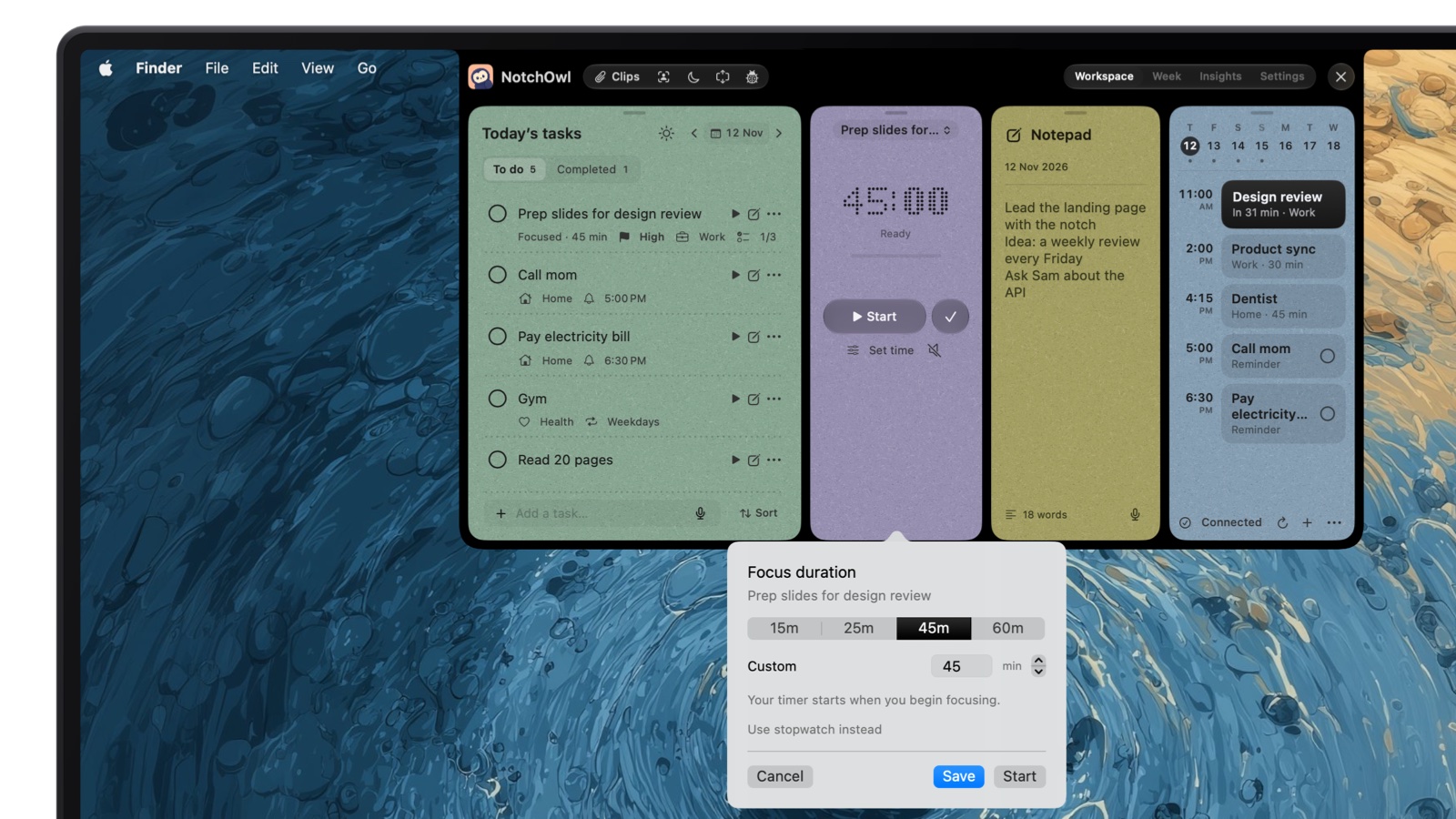
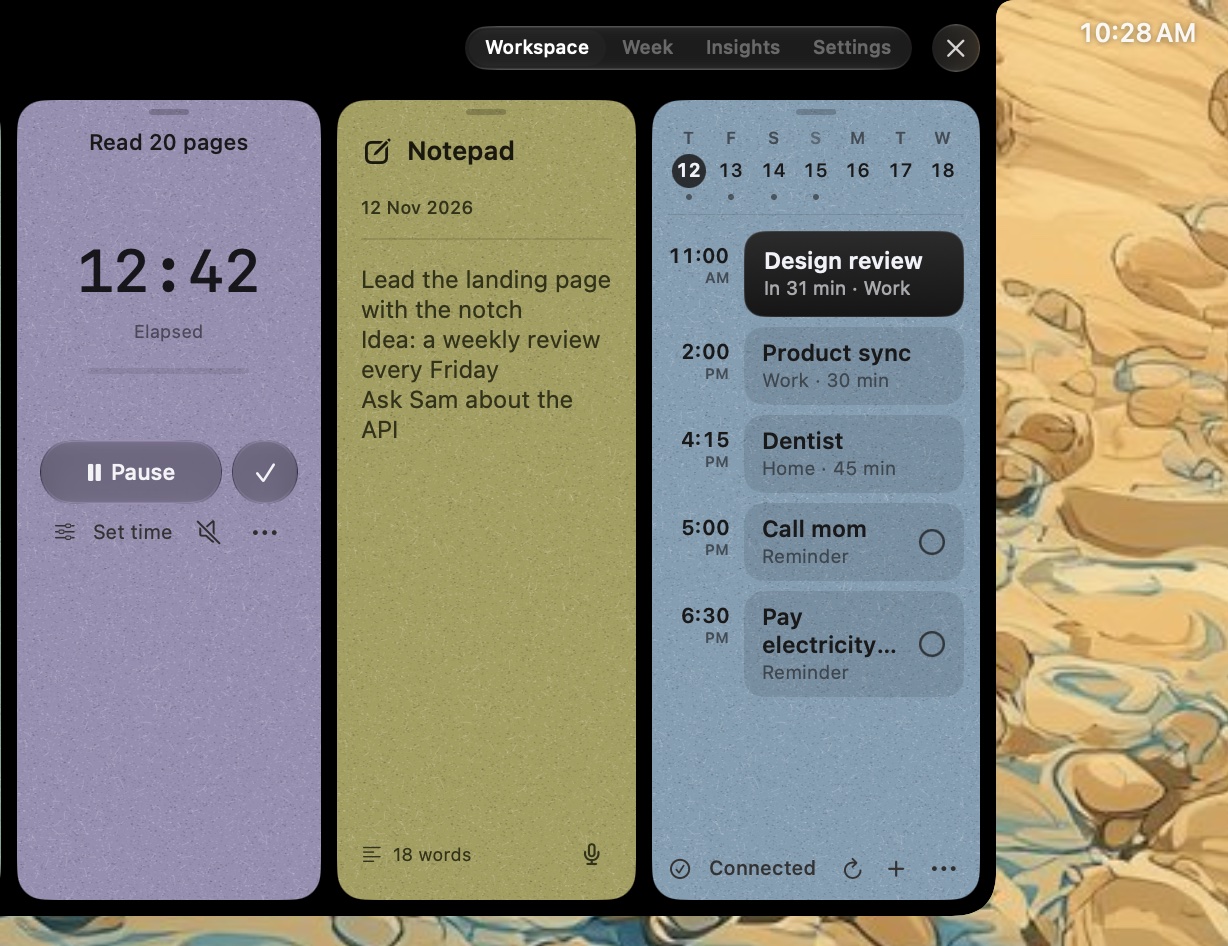
In NotchOwl, a planner that lives in the MacBook notch, the focus timer sits next to today’s tasks. Pick a countdown of 15, 25, 45 or 60 minutes, or your own length, or run a stopwatch, on a task or on its own, and the time stays visible beside the closed notch over whatever app you’re using. On an external monitor, NotchOwl draws a notch of its own and the timer follows you there; Macs without a notch open NotchOwl at the top center of the screen.
Set time: pick 15, 25, 45 or 60 minutes, type your own, or use the stopwatch instead.
You can pause, resume or add five minutes, and when time is up you choose Keep going, Take a break or Mark done. Take a break simply ends the session; NotchOwl doesn’t run a break timer. Start and control the timer from the notch, from NotchOwl’s menu bar menu, or with the Start Focus action in Shortcuts, Spotlight and Siri, which can take a task and a number of minutes. A Focus desktop widget shows the running timer. While a session runs, NotchOwl can play brown noise, pink noise, rain or ocean sounds, and it can run your own shortcuts as the session starts and ends, such as one that turns on Do Not Disturb.
No limit? The stopwatch counts up while you work on a task.
Unlike the Clock app, NotchOwl pauses the timer while the Mac sleeps, so Insights counts only active focus time. It runs one session at a time, records no laps, doesn’t count Pomodoro rounds, and doesn’t block apps or websites.
Price: $12 once for up to 3 Macs (an early-bird price, normally $39), with lifetime updates and a 7-day money-back guarantee. There is no free tier or trial.
Requirements: an Apple silicon Mac with macOS 14 Sonoma or later. No Intel, iPhone or iPad version; a notch is optional.
NotchNook Pro and Notchable also keep a focus timer in the notch; the best notch apps for Mac compares them.
Tock: a free menu bar timer and stopwatch
Tock, by Michael Edelstone, is a free, open-source menu bar timer under the MIT license. Type a length in plain words, such as “10 minutes” or “1.5 hours”, and the countdown runs in the menu bar. It also has a stopwatch mode, Pomodoro work and break cycles, configurable tones and global keyboard shortcuts. Tock runs one timer at a time by design and needs macOS 14 or later. Get it from the Mac App Store or GitHub.
Horo: a menu bar timer you type into
Horo, by Matthew Palmer, counts down in the menu bar from whatever you type: “45m”, “1h 15m”, “1:30:45”, or “@3pm” for a countdown to 3 PM. Leave the field empty and it counts up as a stopwatch. A Timer List window shows every timer, and hashtags group them by project. Horo is free; Horo Pro ($9.99) adds stats, full history with CSV export, custom alert sounds and custom keyboard shortcuts. It needs macOS 13.5 or later. Horo on the Mac App Store
Timer by Apimac: several timers and a full-screen countdown
Apimac’s Timer runs countdowns, alarms and stopwatches (to a hundredth of a second, with laps), several in parallel, and has a full-screen mode that is easy to read across a room. It has a free trial for a limited number of launches, then a paid unlock; Apimac’s site has the current price. Timer for Mac
Pomodoro and focus timers
If you want work and break cycles rather than a single countdown, use a Pomodoro app. TomatoBar is free and lives only in the menu bar, Be Focused times classic cycles with a task list, and Session and Be Focused can block distracting apps and websites with Pro. The best Pomodoro timer apps for Mac compares them with prices, where each timer lives and what it blocks.
On a Mac, the built-in Clock app (macOS Ventura and later) runs one or more timers and a stopwatch with laps, and works with Siri, Spotlight and Shortcuts; for a countdown that stays in view while you work, add a notch timer such as NotchOwl or a menu bar timer such as Tock.
Which Mac timer should you use?
Kitchen, laundry or a quick break: the Clock app or Siri.
You live on the keyboard: Spotlight’s Start Timer action on macOS Tahoe 26 or later, with a quick key.
The same timer every day: a shortcut with Clock’s Start Timer action, added to Control Center or the menu bar.
A countdown always in view: NotchOwl beside the notch, or Tock or Horo in the menu bar.
A stopwatch with laps: the Clock app. For elapsed time in view, NotchOwl, Tock or Horo; for billable hours, Toggl Track.
Work and break cycles: a Pomodoro app such as Be Focused, Session or TomatoBar.
A countdown the whole room can read: Apimac’s Timer in full screen.
Open the Clock app, click Timers, set the length and click Start. You can also ask Siri to “set a timer for 10 minutes”, or, on macOS Tahoe 26 and later, press Command–Space, type Start Timer and run the action from Spotlight.
Is there a stopwatch on a Mac?
Yes. The Clock app, built into macOS Ventura and later, has a Stopwatch view that times to a hundredth of a second, records laps and switches between a digital and an analog face. It keeps running when you switch apps or the Mac sleeps.
Can I run more than one timer at once on a Mac?
Yes, on macOS 14.2 or later. In the Clock app’s Timers view, click the Add button and choose Custom Timer or a preset such as 5 minutes, then give each timer a name and its own sound so you can tell them apart.
Does a Mac timer keep running when the Mac goes to sleep?
Yes for the Clock app: Apple says its timers and stopwatch keep running when you switch apps or the Mac sleeps, and a notification appears when a timer ends. Some focus timers work differently; NotchOwl pauses its focus timer while the Mac sleeps so it counts only active time.
How do I keep a countdown visible in the Mac menu bar?
Use a menu bar timer app. Tock is free and open source and shows a countdown or stopwatch in the menu bar, and Horo is free with a $9.99 Pro upgrade. The Clock controls you can add to Control Center only open the Clock app; a Run Shortcut control can start a timer in one click.
What is the best timer app for Mac?
The built-in Clock app is enough for kitchen and laundry timers. For a countdown that stays in view, NotchOwl ($12 once) runs a countdown or stopwatch beside the MacBook notch, tied to your tasks, and Tock (free) and Horo put one in the menu bar; for Pomodoro cycles, use Be Focused or Session.