How to Keep Your To-Do List Always Visible on a Mac
Keep a to-do list visible on a Mac: NotchOwl puts today’s tasks in the notch above every window, or use Stickies, Notes and widgets for free.
To keep your to-do list visible on a Mac, put it where app windows can’t bury it: NotchOwl, a Mac app I make, keeps today’s tasks one hover away in the MacBook notch, above every window, with a focus timer beside it, for $12 once (Mac only). For free, Stickies’ Window › Float on Top and Notes’ Window › Keep on Top hold a list in front of other apps, and a desktop widget for Reminders shows one on the desktop, though open windows cover it.
Beyond those, floating apps such as Visido and Vigilare keep a whole list on screen all day, and pinning tools such as Floaty and BetterTouchTool float the window of the to-do app you already use. Because NotchOwl is mine, I say plainly where something else fits better. Apple’s steps come from its support pages for macOS 27, and every other app’s details from its developer’s site or App Store listing, checked on November 12, 2026.
Why your to-do list disappears behind windows
macOS stacks windows: whichever app you click comes to the front and covers the rest. A list in its own window, a widget on the desktop, or a sticky note at its normal level is buried within minutes, and a list you can’t see is easy to forget. Full screen goes further. A full-screen app fills the display and hides the menu bar until you move the pointer to the top of the screen (Apple: use apps in full screen).
That leaves two ways to keep a list in sight:
- Float a window above the others. Stickies, Notes and a few to-do apps can do this themselves, and pinning utilities add it to any app. The whole list is always there, and it always covers part of what you’re working on.
- Keep it at the top of the screen. The menu bar and the MacBook notch sit above app windows. A menu bar or notch app covers nothing while you work; you see a count, one task or a timer, and the full list is a click or a hover away.
Free built-in ways to keep tasks in view
Stickies: Float on Top
Stickies comes with every Mac, and one sticky note makes a fine short list. Apple’s Stickies User Guide has the two settings that matter here:
- Open Stickies (press Command–Space and type “Stickies”), choose File › New Note and write your list.
- Choose Window › Float on Top. That note now stays in front of other windows.
- If it covers too much, choose Window › Translucent to make the note semi-transparent.
Float on Top is set per note, so float today’s list and leave the rest on the desktop. A sticky has no due dates or alerts, though: it waits for you to look at it. For colors, lists and getting your notes back after a restart, see sticky notes on Mac.
Notes: Keep on Top
Apple Notes does the same with a checklist you can tick off, and with Notes in iCloud the list is on your iPhone too. Double-click a note in the notes list to open it in its own window (Apple: view your notes), then, with that window in front, choose Window › Keep on Top. The note floats over other apps until you choose the command again.
A Reminders widget on the desktop
If your tasks live in Apple Reminders, a widget shows them without opening the app. Control-click the wallpaper, choose Edit Widgets, find Reminders and drag a widget onto the desktop (Apple: add and customize widgets). Apple says Reminders widgets are interactive, so you can check off items right in the widget, and you can add several, each with its own size and list.
The catch is where widgets live. They sit on the desktop under your windows, and Apple’s fix is to click the wallpaper, which moves open windows aside. That makes a widget a good glance between tasks, not a list in view while you work. Mac desktop widgets covers sizes, iPhone widgets and the settings worth changing.
Keep the menu bar on screen in full screen
Menu bar apps stay above ordinary windows, but in a full-screen app the menu bar hides until you move the pointer to the top. To keep it showing, open System Settings › Menu Bar and set Automatically hide and show the menu bar to Never. Apple’s other choices are Always, On Desktop Only and In Full Screen Only (Apple: change Menu Bar settings).
Notch and menu bar apps
NotchOwl: today’s tasks in the notch, above every window
NotchOwl turns the MacBook notch into a small daily planner. Hover the notch or press Option–N, and today’s tasks, a focus timer, a daily notepad and the next two weeks of calendar events drop down over whatever app is in front, then fold away when you’re done. If a hover opens it too easily, Open notch with in Settings switches to a click or a double-click.
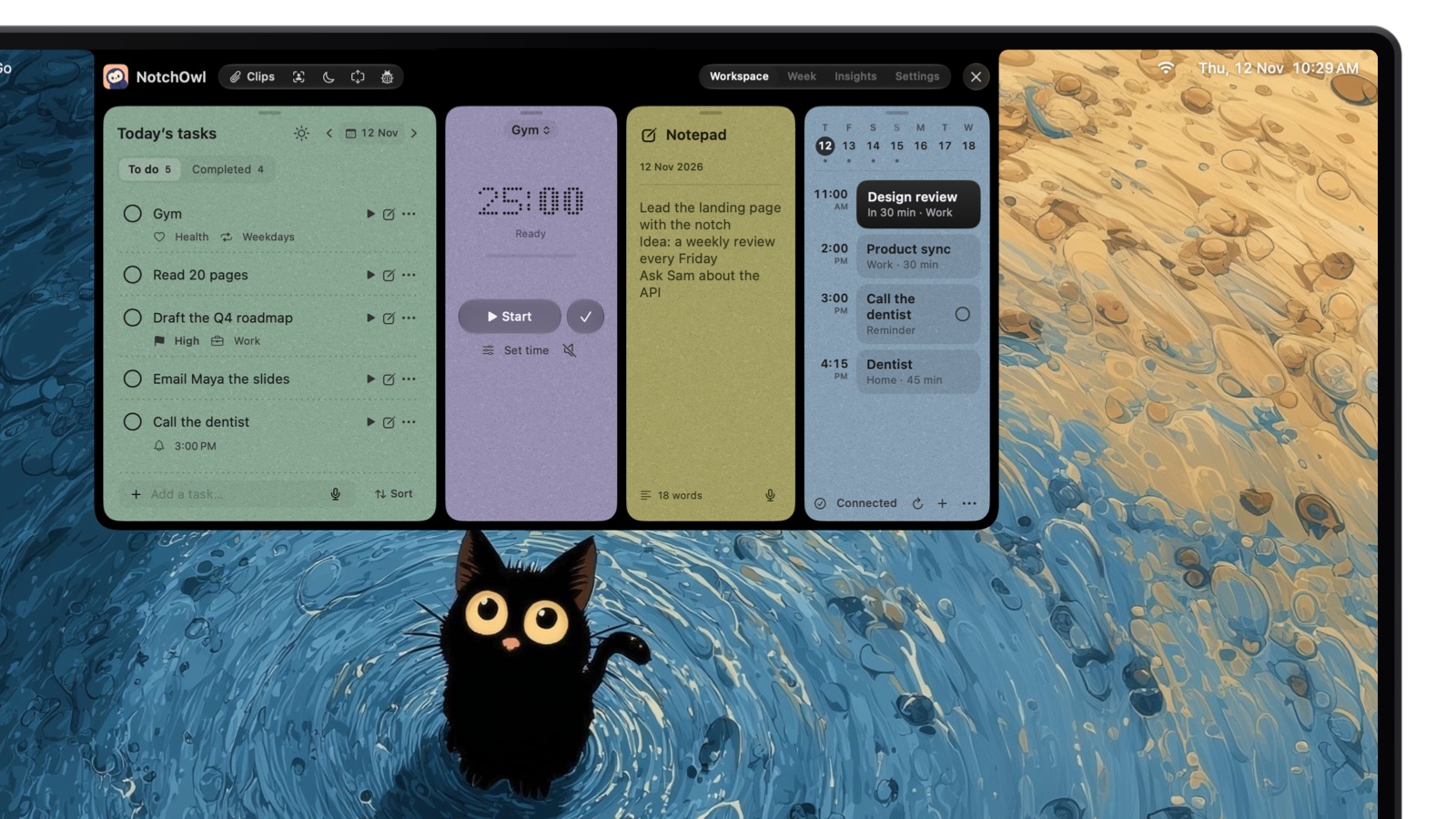
Today’s list in the notch, with priorities, projects and reminder times at a glance.
What stays in view while the notch is closed:
- A running focus timer. Start focus on a task and the countdown sits beside the closed notch, in sight in every app.
- Reminders that come to you. When a task’s reminder comes due, the notch opens by itself with the task, Snooze and Done, so a list you aren’t looking at still gets your attention.
- An owl in the menu bar. Its menu adds tasks, starts, pauses and ends focus, ticks off today’s first tasks and pauses reminders for an hour.
- Desktop widgets. Today and Focus widgets show the list and the timer on the desktop, under your windows like any widget.
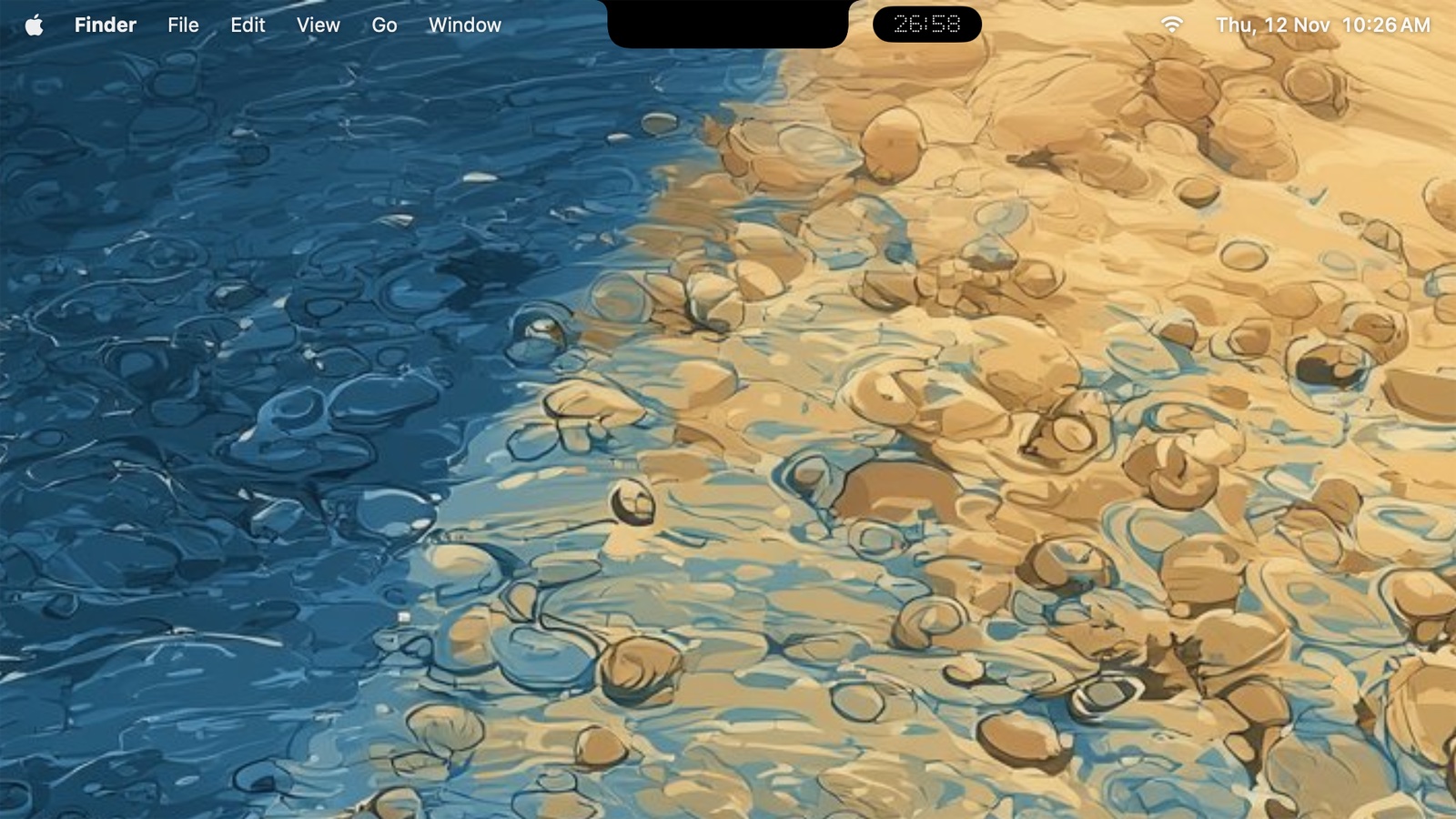
Closed, the notch keeps a running focus timer in sight beside it.
My short demo on YouTube shows a day in the notch, from a task said out loud to a reminder on the Mac, iPhone and Apple Watch:

It also covers full screen and other screens. On a MacBook, the notch keeps working while an app is full screen. External monitors get a notch NotchOwl draws at the top of the screen, which steps aside when an app goes full screen there; pushing the pointer to the middle of the top edge still opens NotchOwl (NotchOwl on an external monitor). Macs without a notch open it at the top center of the screen.
Where NotchOwl falls short:
- The full list is a hover away, not always on screen. If you want to read every task without moving the pointer, a floating window, below, does that, at the cost of covering part of your work.
- Mac only. It needs an Apple silicon Mac with macOS 14 Sonoma or later and has no iPhone app; optional two-way Apple Reminders sync puts tasks on iPhone and Apple Watch.
- No free tier or trial. It costs $12 once for up to 3 Macs (an early-bird price, normally $39), with lifetime updates and a 7-day money-back guarantee.
- It doesn’t block anything. NotchOwl reminds you and times your focus, but it doesn’t block apps or websites.
You can download NotchOwl and see the list in the notch for yourself.
Tasq: one task in the notch, not out yet
Tasq describes itself as a Mac app for people who lose focus that keeps one task in sight in the notch until it’s done. On November 12, 2026, its site says “Coming soon”, with no download, price or system requirements yet.
Menu bar apps: one task, a count or a click away
- One Thing by Sindre Sorhus puts your most important task or goal in the menu bar as text. It’s free and needs macOS 26.6 or later.
- ToDoBar by Softal Limited can show today’s pending task count, or your next pending task, in place of its icon. It costs $2.99 once and needs macOS 13 or later; its last update, version 2.1.0, came out on February 19, 2025.
- Taskin keeps a full list behind a menu bar icon, with a global hotkey to add tasks from any app. Core features are free with no task limits, and a $2.99 monthly Pro plan adds two-way Google Tasks sync. It’s Mac only and needs macOS 14 or later.
These show one line at most, and the full list is a click away. The best menu bar to-do apps for Mac compares more of them, including Reminders MenuBar, TickTick and other notch apps.
Floating to-do apps that stay on top
Visido: a list that floats all day
Visido by Steve Schramm is a to-do app built around staying in view: on a Mac, its always-on-top window stays above every app. The free version includes that window, a month calendar, iCloud sync and natural-language dates. Visido Pro adds tags, projects, repeating tasks and Apple Reminders import for $2.99 a month, $29.99 a year or $79.99 for life, with a 14-day free trial. It runs on Macs with macOS 13 or later, iPhone, iPad and Apple Vision Pro, and on iPhone your tasks show in the Dynamic Island and on the Lock Screen.
- Pick Visido if you want every task on screen all day, on your Mac and your phone, and don’t mind it taking a corner of the screen.
Vigilare: Apple Reminders in a floating window
Vigilare by Labee LLC shows your existing Apple Reminders lists in a floating window. Its window level can be Always on Top, Normal or Desktop, and its developer says Always on Top floats above every window, even full-screen apps. The Mac App Store listing adds adjustable opacity, access from the menu bar and a window that follows you across desktops. Vigilare costs $9.99 once and needs macOS 15.4 or later; a free iPhone and iPad app works with the same reminders.
- Pick Vigilare if your tasks already live in Reminders and you want them floating, not in a widget behind your windows.
Pin any app’s window on top
Only some apps, like Stickies and Notes, have a float command of their own. If your list lives in Things, Todoist, TickTick or a browser tab, a pinning utility can float that window instead, so you keep the to-do app you already know.
Floaty: pin any window
Floaty keeps any window you pick above the others and pins or unpins it with global shortcuts. It’s free to use, and a $12.99 one-time Pro upgrade adds multiple pinned windows, opacity and automation. You download it from its site, it needs Screen Recording and Accessibility permissions, and it runs on macOS Sonoma, Sequoia and Tahoe on Apple silicon and Intel Macs. One limit matters here: Floaty can’t pin windows over full-screen apps yet, because each full-screen app gets a Space of its own; its FAQ suggests normal or Split View windows instead.
- Pick Floaty if you like your to-do app and only want its window to stop disappearing.
BetterTouchTool: pinning in a bigger toolkit
BetterTouchTool customizes gestures, shortcuts and window handling on the Mac, and one of its actions, Pin to Float on Top, floats a window above the rest. Its release notes describe a newer Live mode that lets you resize and zoom the floating window. BetterTouchTool is free for 45 days, then costs $15 with two years of updates or $25 for a lifetime license, and it’s also part of Setapp.
- Pick BetterTouchTool if you already use it, or also want window snapping and custom shortcuts. For pinning alone, Floaty is the smaller tool.
Every way to keep a to-do list visible, compared
| Method | Stays visible over full-screen apps? | Price | Platforms |
|---|---|---|---|
| NotchOwl | On a MacBook, yes: hover the notch. On a monitor, open it from the top edge | $12 once, up to 3 Macs | Mac (Apple silicon, macOS 14+); iPhone through Reminders sync |
| Stickies, Float on Top | Apple doesn’t say | Free, built in | Mac |
| Notes, Keep on Top | Apple doesn’t say | Free, built in | Mac; the note syncs with iCloud |
| Reminders widget | No; it lives on the desktop | Free, built in | Mac; Reminders on iPhone, iPad and Apple Watch |
| One Thing, ToDoBar, Taskin | Only with the menu bar set to stay visible | One Thing free; ToDoBar $2.99 once; Taskin free, Pro $2.99/month | Mac |
| Visido | Not stated | Free; Pro $2.99/month, $29.99/year or $79.99 lifetime | Mac, iPhone, iPad, Vision Pro |
| Vigilare | Yes, says its developer | $9.99 once | Mac (macOS 15.4+); free iPhone and iPad app |
| Floaty | Not yet, says its developer | Free; Pro $12.99 once | Mac (Sonoma or later) |
| BetterTouchTool | Not documented | $15, or $25 lifetime; 45-day trial | Mac |
On a Mac, a to-do list stays visible in one of three places: at the top of the screen, in a notch or menu bar app such as NotchOwl; in a window that floats above the others, such as Stickies, Notes, Visido, Vigilare or any app pinned with Floaty; or on the desktop as a widget, which is free but sits behind your windows.
Which should you pick?
- You want today’s list above every window without it covering your work, plus a focus timer and reminders: NotchOwl.
- You want a free list in front of you right now: a Stickies note with Float on Top, or a Notes checklist with Keep on Top.
- Your tasks are in Apple Reminders: a Reminders widget for free glances, or Vigilare to float them over your work.
- You want every task on screen all day, and on your iPhone: Visido.
- You want one priority in the menu bar: One Thing on macOS 26.6 or later, or ToDoBar on older versions.
- You’re happy with your to-do app: pin its window with Floaty, or with BetterTouchTool if you already use it.
- You spend the day in full-screen apps: NotchOwl on a MacBook, Vigilare, or a menu bar app with the menu bar set to never hide.
Frequently asked questions
Is there an always on top option on a Mac?
Not one setting for every window. Stickies has Window › Float on Top and Notes has Window › Keep on Top for their own notes. For other apps’ windows, a utility adds it: Floaty is free to use with a $12.99 Pro upgrade, and BetterTouchTool has a Pin to Float on Top action.
How do I put my to-do list on my Mac desktop?
Add a Reminders widget: Control-click the wallpaper, choose Edit Widgets, find Reminders and drag a widget onto the desktop, then pick the list it shows. You can check items off right in the widget, but open windows cover it; click the wallpaper to move them aside.
Can a to-do list stay on top of full-screen apps on a Mac?
Some can. On a MacBook, NotchOwl’s notch still opens over full-screen apps, and Vigilare’s developer says its floating Reminders window stays above them. Floaty can’t pin windows over full-screen apps yet. Menu bar apps stay in view if you set Automatically hide and show the menu bar to Never in System Settings › Menu Bar.
How do I keep Apple Reminders on top of other windows on a Mac?
Use Vigilare, a $9.99 Mac app that shows your Reminders lists in a floating window you can set to Always on Top. For free, a Reminders widget shows one list on the desktop, but it sits behind your app windows.
Does NotchOwl keep my tasks on screen all the time?
Not every task. Today’s list is one hover over the notch, or Option–N, away and opens above every window. With the notch closed, a running focus timer stays beside it, and a due reminder opens the notch by itself. For every task on screen at once, use a floating app such as Visido.