Google Calendar Widget for Mac and the Best Calendar Apps
Google Calendar widget for Mac: Google makes no Mac app, so add it to Apple Calendar for widgets, use a web or menu bar app, or see meetings in NotchOwl.
By Aditya Jaiswal, founder of NotchOwl · Updated · 14 min read
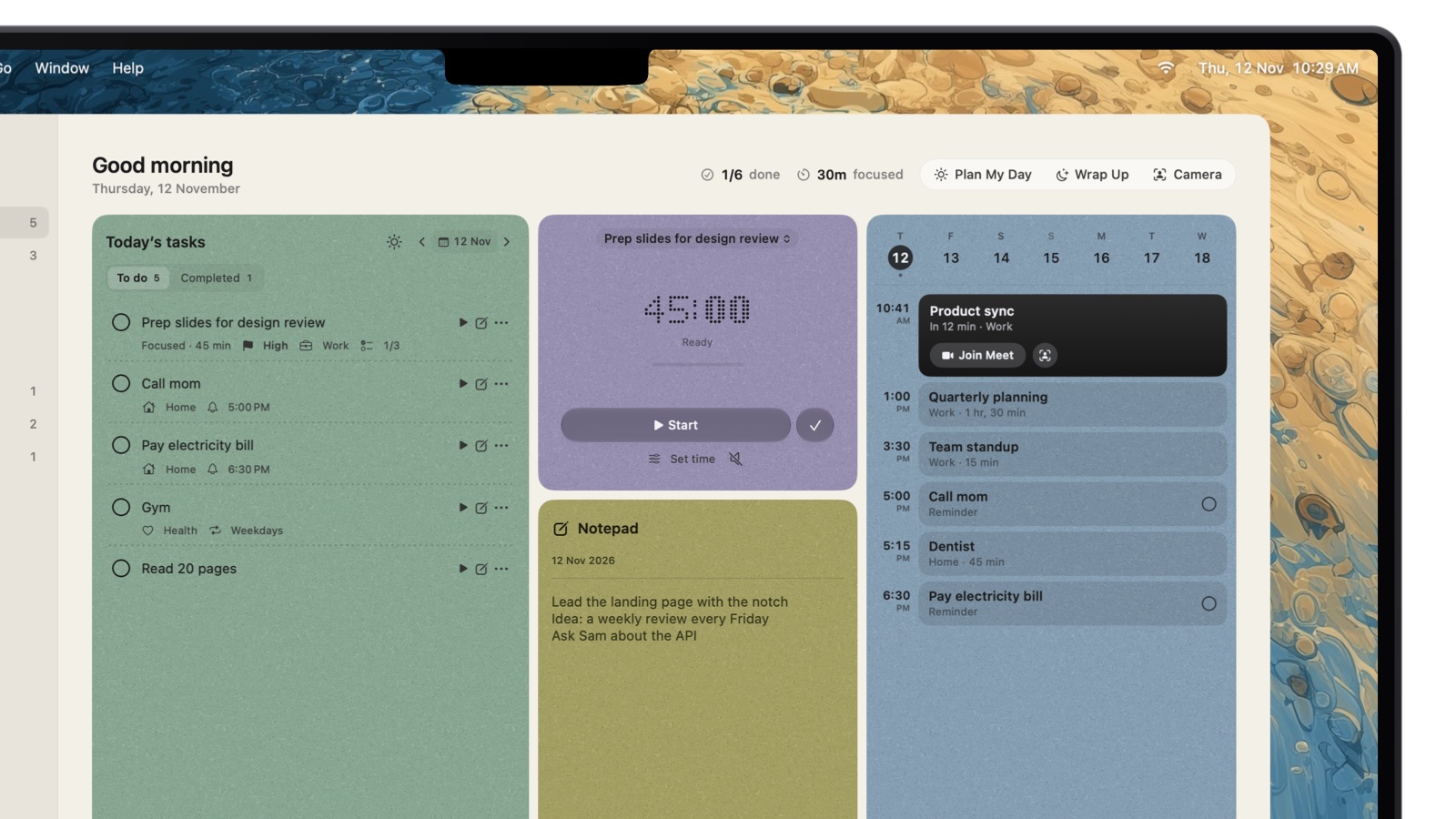
Google doesn’t make a Google Calendar app or widget for the Mac. NotchOwl, a notch app I make, fills part of that gap: it shows the next two weeks of your Google events in the MacBook notch, with Join buttons for video calls, though it only reads them. The simplest way to get a Google Calendar widget on a Mac is to add your Google account to Apple Calendar in System Settings › Internet Accounts, then add Apple’s Calendar widget to the desktop or Notification Center: your Google events show up in it. You can also install calendar.google.com as a web app in your Dock or keep a calendar in the menu bar.
This guide walks through each option, with the steps for current macOS, and ends with the best calendar apps for Mac if you want more than Apple’s. Since NotchOwl is mine, its section spells out what it doesn’t do. Everything was checked on Apple’s and Google’s help pages, the developers’ sites and the Mac App Store in November 2026, on macOS 27.
Is there a Google Calendar app for Mac?
No. Google’s own Google Calendar page lists the web, Android, iOS, Wear OS and Apple Watch, and nothing for macOS or Windows. Google’s iPhone and iPad app isn’t a way in either: its App Store listing names iPhone, iPad and Apple Watch only, so it can’t be installed on an Apple silicon Mac the way some iPad apps can.
That leaves a handful of ways to use Google Calendar on a Mac, and most people end up combining two of them.
Ways to use Google Calendar on a Mac compared by where it shows, cost and whether you can edit events there (November 2026)
Option
Where it shows
Cost
Edit Google events there?
Best for
Apple Calendar with your Google account
The Calendar app, its widgets and notifications
Free, built in
Yes
Most people
Calendar widget
Desktop or Notification Center
Free, built in
No; a click opens Calendar
Seeing today at a glance
Google Calendar’s iPhone widget
Desktop or Notification Center, from your iPhone
Free
No; it asks you to open the app on iPhone
People who like Google’s own widget
Web app from Safari or Chrome
Its own window and Dock icon
Free
Yes, with every Google feature
Google Meet, rooms and other Google-only features
NotchOwl
The notch
$12 once
No, read-only
The next meeting beside today’s tasks
Menu bar calendar app
The menu bar
Free to $18
Some can add events
A quick look and one-click Join
How to add Google Calendar to Apple Calendar on Mac
Apple Calendar is the base for most of the other options, because widgets, menu bar apps and NotchOwl all read the calendars it has. Adding your Google account takes about a minute:
Open System Settings › Internet Accounts. You may need to scroll down the sidebar.
Click Add Account. Enter your Google email address, or choose from the list and pick Google.
Sign in to Google in the window that opens, and allow access when Google asks.
Turn on Calendars for the account. Turn off anything you don’t want on this Mac, such as Mail.
Open Calendar. Your Google calendars appear in the sidebar under the account. If you don’t see the sidebar, choose View › Show Calendar List.
You can also start from Calendar itself: choose Calendar › Add Account, pick Google and follow the same sign-in. Apple covers this route in its Calendar guide and the System Settings route in Add your email and other accounts. Events you add or change in Apple Calendar sync back to Google, and the other way round.
Aim Apple’s video shows the same setup on iPhone and Mac, including choosing a default calendar and fixing sync:
Easily Sync Google Calendar with Apple Calendar on iPhone and MacAim Apple
Show calendars that were shared with you
Apple Calendar syncs the calendars under My Calendars in Google, plus Birthdays. Calendars a colleague or family member shared with you don’t sync until you tick them on Google’s sync page, google.com/calendar/syncselect. Save there, then refresh Calendar on the Mac. Google explains this, and the rest of the setup, in Sync Google Calendar with Apple Calendar.
What doesn’t carry over
Google lists three Google Calendar features that don’t work in Apple Calendar: email notifications for events, creating new Google calendars, and the Room Scheduler. If you once synced shared calendars through the Delegation tab in Calendar’s account settings, Google says to untick them there, or sync won’t work. For anything on that list, keep the web app below one click away.
A read-only option for locked-down work accounts
If your organization won’t let you sign in to Google from Apple Calendar, you may still be able to subscribe to a calendar by link. In Google Calendar on the web, open Settings, pick the calendar under Settings for my calendars, choose Integrate calendar and copy the Secret address in iCal format. Then in Apple Calendar, choose File › New Calendar Subscription and paste it. A subscribed calendar is view-only and refreshes on a schedule rather than instantly. Keep the secret address private; if it leaks, Google lets you reset it. Some admins hide it altogether.
How to get a Google Calendar widget on your Mac
Once your Google account is in Apple Calendar, you have two kinds of widget to choose from.
Apple’s Calendar widget, with your Google events in it
For the desktop, Control-click the wallpaper and choose Edit Widgets. For Notification Center, click the date and time in the menu bar, then Edit Widgets at the bottom.
Search for Calendar, pick a size, and click it or drag it into place.
Click Done.
The widget shows events from every calendar Apple Calendar shows, so your Google events sit beside iCloud and work calendars, and clicking it opens Calendar. Desktop widgets can dim to monochrome; to keep them in full color, open System Settings › Desktop & Dock and set Dim widgets on desktop to Never. Apple covers both places in Add and customize widgets on Mac.
Google Calendar’s own widget, from your iPhone
macOS can also show your iPhone’s widgets on the Mac, and that includes Google Calendar’s. Apple’s requirements: the iPhone runs iOS 17 or later, both devices use the same Apple Account, and the iPhone is near the Mac or on the same Wi-Fi network. Turn on Use iPhone widgets in System Settings › Desktop & Dock › Widgets, then add the Google Calendar widget from the widget gallery like any other.
The catch is clicking it. Because the Google Calendar app isn’t on your Mac, the widget shows a message asking you to open Google Calendar on your iPhone to continue. Treat it as a display, not a shortcut.
Where widgets fall short
Desktop widgets sit behind your windows, so you see them only when you move windows aside. Notification Center widgets are hidden until you click the clock. Neither one taps you on the shoulder before a meeting; for that you need notifications, the notch or a menu bar app.
Google Calendar as a desktop app: Safari and Chrome web apps
If you want Google Calendar exactly as Google makes it, with Google Meet links, rooms and every setting, turn the website into an app with its own Dock icon.
Safari: open calendar.google.com and sign in. Click the Share button in the toolbar, choose Add to Dock, then click Add. Apple says the web app gets a simplified toolbar, can send notifications like any other app, and usually keeps you signed in. It appears in the Dock and in Spotlight. See Apple’s guide to Safari web apps.
Chrome: open calendar.google.com, click the More menu, then Cast, save, and share › Install page as app. Or click the install icon at the right end of the address bar if it appears. The app opens from the Dock. To remove it, open the app and choose More › Uninstall. Google’s steps are in Use progressive web apps.
A web app is the most complete Google Calendar on a Mac, but it is still a website. It has no widget, it shows only Google calendars, and it does nothing until you open it.
Your Google meetings in the notch with NotchOwl
Hover over the MacBook notch or press Option–N, and NotchOwl drops today’s tasks, a focus timer, a daily notepad and your calendar events for the next two weeks over whatever app you’re in. For Google Calendar users, that keeps the next meeting in sight without a window or widget:
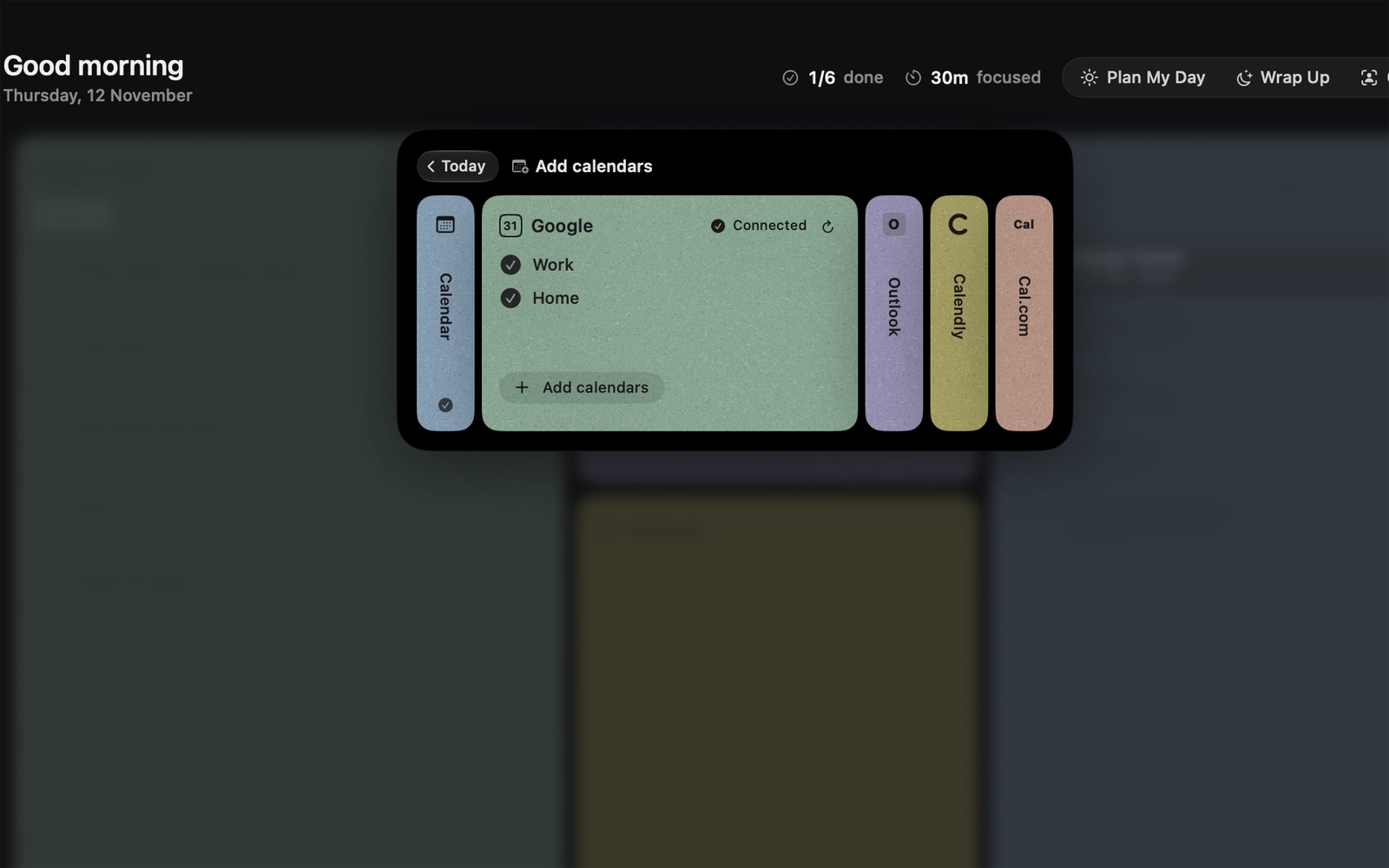
Google comes in through your Mac. In NotchOwl’s Add calendars panel, Google and Outlook connect through Internet Accounts, the same account you added above, or through an iCal (ICS) link that Calendar subscribes to. Google Workspace accounts are recognized, and NotchOwl checks that each calendar is really connected.
A small calendar in the notch. The Events card shows the week across the top, the chosen day in blocks below, and your next meeting picked out with its Join button. Meetings for the days ahead also appear on the Week board, above each day’s tasks.
The notch opens before a meeting. Five minutes before a timed event, and again as it starts, the notch opens with the meeting, and video calls get a Join button. Zoom and Teams links open in their own apps. NotchOwl’s menu bar menu can join a meeting too.
Time to leave, if you want it. Off by default, Time to leave has Apple Maps time the trip to events with an address and tells you when to go.
Your tasks fit around your meetings. Plan your day fits today’s untimed tasks into the free time around your events and gives each one a reminder, which you approve before anything changes.
Calendly and Cal.com too. Bookings come in with your own key, kept in your Mac’s Keychain.
The next Google Meet call sits on top in black, with Join Meet one click away.
Google makes no Google Calendar app for Mac, so the usual setup is to add your Google account to Apple Calendar through Internet Accounts, then see your events in Apple’s Calendar widget, a notch app such as NotchOwl or a menu bar app.
Once Google is connected on your Mac, Add calendars shows which of its calendars NotchOwl reads.
Calendar access is optional and read-only: NotchOwl never creates, edits or deletes events, so you still need Apple Calendar, Google Calendar or another app to add a meeting or move one. It shows two weeks ahead, not a month grid. It needs an Apple silicon Mac with macOS 14 Sonoma or later, works without a notch (it draws its own on external monitors), and has no iPhone app. It costs $12 once for up to 3 Macs, an early-bird price that is normally $39, with a 7-day money-back guarantee and no free trial; see what the license includes or download NotchOwl.
Calendar events were in the notch from NotchOwl’s first version, as I announced on X:
Introducing NotchOwl 🎉
… It brings your tasks, focus timers, notes, and calendar events right into your tiny notch.
The menu bar is the classic place for a calendar on a Mac, and there are good options from free to a few dollars.
Built in: click the date and time to open Notification Center. With a Calendar widget added there, that’s a free menu bar calendar with nothing to install.
Itsycal is a free, open-source menu bar calendar from Mowglii. It works with the Calendar app on your Mac, so it shows your Google events, and it can create events, show and complete reminders, and join virtual meetings. Its newest download needs macOS 27 or later, and Mowglii still offers version 0.15.15 for macOS 11 and later.
Dato by Sindre Sorhus puts the date and a calendar with upcoming events in the menu bar, adds clocks for other time zones, joins video calls from a keyboard shortcut (Zoom, Google Meet, Microsoft Teams and 50 more services), and can show a full-screen notification when a meeting starts. It costs $18 once on the Mac App Store or comes with Setapp, and needs macOS 26 or later.
MeetingBar is free and open source (Apache-2.0). It shows your current or next meeting in the menu bar with a countdown, joins with one click or a shortcut, lists today’s and tomorrow’s events, and supports more than 50 meeting services. It reads the macOS Calendar or connects to Google Calendar directly, and needs macOS 12 or later.
If Apple Calendar feels too plain, these are the best calendar apps for Mac that work with Google Calendar. Prices are US prices as of November 2026.
The best calendar apps for Mac compared by price, Google Calendar support and platforms (US prices, November 2026)
App
Price
Google Calendar
Platforms
Best for
Apple Calendar
Free, built in
Through Internet Accounts
Mac, iPhone, iPad, Apple Watch
A free calendar with widgets and Siri
NotchOwl (not a full calendar)
$12 once, up to 3 Macs
Read-only, through Apple Calendar
Mac (Apple silicon, macOS 14+)
The next meeting next to your tasks
Fantastical
Free; Premium $6.99 a month or $56.99 a year
Direct, with Google Tasks
Mac (macOS 12.4+), iPhone, iPad, Watch, Vision Pro, Windows
Typing events in plain English
Notion Calendar
Free
Direct, plus Outlook and iCloud
Mac, Windows, iPhone, iPad, Android
People who plan in Notion
BusyCal
$49.99 once; iPhone and iPad $9.99
Direct, plus iCloud, Exchange and CalDAV
Mac (macOS 13.5+), iPhone, iPad
A powerful calendar with no subscription
Google Calendar web app
Free
It is Google Calendar
Any browser
Every Google-only feature
Apple Calendar: the best free calendar app for Mac
Apple Calendar is already on your Mac and syncs through iCloud to iPhone, iPad and Apple Watch. With Google added through Internet Accounts, it shows all your calendars in one place, works with the widgets and menu bar apps above, and lets you drag events to move them. Its quick-event box takes a typed description, but that’s as far as natural language goes, and the Google features Google lists as missing, such as the Room Scheduler, stay on the web.
Fantastical: the best for typing events in plain English
Fantastical by Flexibits lets you add an event by typing a sentence such as “Lunch with Sarah at 1pm tomorrow”. It connects to Google directly, including Google Tasks, and has a mini window you open with a keyboard shortcut, plus a Join icon in the menu bar for calls. The free version covers a basic calendar; Flexibits Premium adds the rest and costs $6.99 a month or $56.99 a year on the Mac App Store, with a 14-day trial. Fantastical needs macOS 12.4 or later.
Notion Calendar: the best free pick for Notion users
Notion Calendar is free and connects Google Calendar, Outlook and iCloud calendars. Its strength is Notion: database items such as deadlines and project timelines show beside your events, and you can join meetings from the menu bar. Google Meet works by default with Google calendars. It runs on Mac, Windows, iPhone, iPad and Android. iCloud calendars need an app-specific password from your Apple Account.
BusyCal: the best one-time purchase
BusyCal by BusyMac costs $49.99 once for the Mac, with no subscription and 18 months of updates included; the iPhone and iPad app is $9.99. It syncs Google calendars natively alongside iCloud, Exchange and CalDAV, and adds a Year Planner, tasks that sync with Reminders, smart filters, natural-language entry, travel time and weather. Its menu bar app works even when the main app is closed. BusyCal has a 14-day trial, comes with Setapp, and needs macOS 13.5 or later.
Google Calendar in a web app: the most complete Google experience
The Safari or Chrome web app above is free and is simply Google Calendar, so every Google feature works, including the ones Apple Calendar skips. It’s the right home for Google-only work, and a good companion to any app in this list.
If you plan your day by putting tasks on the calendar, also see the best time blocking apps for Mac, which compares Sunsama, Akiflow, Motion and more.
Which setup should you choose?
You just want Google events on your Mac: add your Google account to Apple Calendar and add a Calendar widget. Free, and done in a few minutes.
You need Google-only features like Meet links and rooms: install calendar.google.com as a Safari or Chrome web app, and keep Apple Calendar for widgets.
You want your meetings beside your to-do list: NotchOwl shows the next two weeks of events with Join buttons, next to today’s tasks and a focus timer, in the notch. Pair it with any calendar in this guide for editing. If your tasks live in Apple Reminders, read how to see Apple Reminders in the menu bar or notch.
You live in back-to-back meetings: a menu bar app like MeetingBar or Dato puts the next call and a Join shortcut in the menu bar.
You want a better calendar app: Fantastical if you type events, Notion Calendar if you plan in Notion, BusyCal if you’d rather pay once.
Frequently asked questions
Is there a Google Calendar app for Mac?
No. Google offers Google Calendar on the web, Android, iPhone, iPad, Wear OS and Apple Watch, but not as a Mac app, and its iPhone app isn’t offered on the Mac App Store. On a Mac, add your Google account to Apple Calendar, install calendar.google.com as a web app, or use a third-party calendar app.
How do I put a Google Calendar widget on my Mac desktop?
Add your Google account in System Settings › Internet Accounts and turn on Calendars. Then Control-click the desktop, choose Edit Widgets and add a Calendar widget; it shows your Google events alongside any others in Apple Calendar.
Why don’t all my Google calendars show up in Apple Calendar?
Apple Calendar syncs your own Google calendars and Birthdays automatically, but other calendars shared with you have to be ticked on Google’s sync page at google.com/calendar/syncselect. Save there, then refresh Calendar on your Mac.
What is the best calendar app for Mac?
Apple Calendar is the best free choice and works with Google, iCloud and Outlook accounts. Fantastical is the pick for typing events in plain English (free, or $6.99 a month for Premium), Notion Calendar is free and best for Notion users, and BusyCal costs $49.99 once with no subscription.
How do I see Google Calendar in the Mac menu bar?
Click the date and time in the menu bar to open Notification Center, where a Calendar widget can show your Google events. For a real menu bar calendar, Itsycal and MeetingBar are free, and Dato costs $18 once; all three read the calendars in Apple Calendar.
Can NotchOwl add events to my Google Calendar?
No. NotchOwl reads your Google calendars, through Apple Calendar or an iCal link, and shows the next two weeks of events with Join buttons for video calls, but it never creates, edits or deletes events. Use Apple Calendar or Google Calendar to change them.