Keep Mac Awake
Keep Mac Awake stops your Mac from going to sleep while you leave it alone: for a long download, an export, a presentation, or a build that has to finish. You choose how long, and your Mac goes back to sleeping as usual when the time is up.
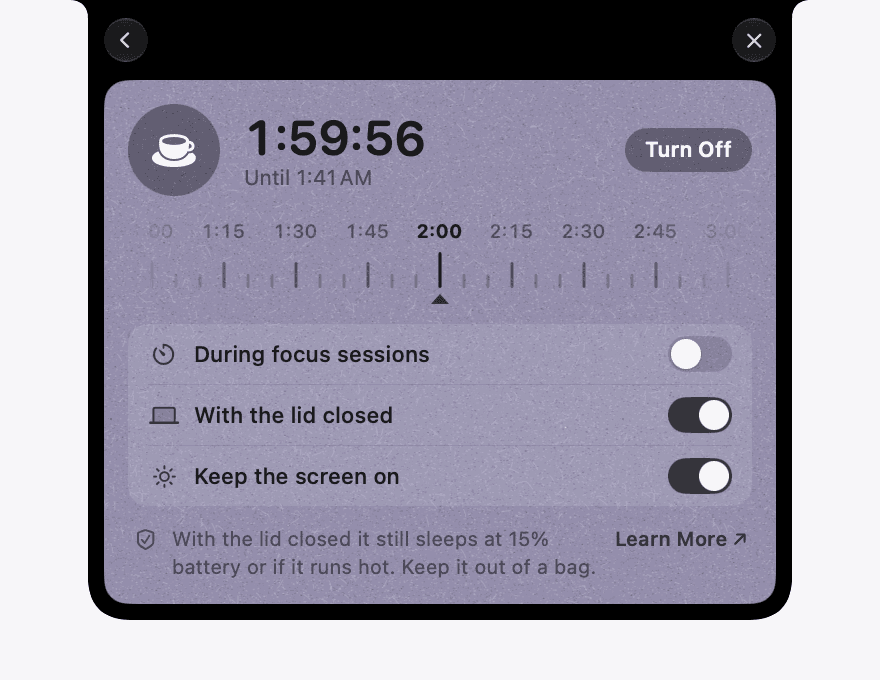
How to use it
- Open the notch and click the cup, or choose Keep Mac Awake from NotchOwl’s menu bar menu.
- Drag the ruler to how long: every five minutes up to 12 hours, or ∞ to keep going until you turn it off.
- Click Start. The cup stays beside the notch with the time left, and Turn Off ends it at any moment.
The three switches
- During focus sessions. Your Mac stays awake while a focus timer runs and sleeps as usual after it ends.
- With the lid closed. A MacBook keeps working with its lid shut. This one needs your OK once, and has safeguards of its own. Both are explained below.
- Keep the screen on. On, the display stays lit too. Off, your Mac stays awake but its display can go dark, which suits an overnight download.
What still puts your Mac to sleep
Keep Mac Awake only stops the sleep that comes from leaving a Mac idle. Unless you turn on With the lid closed, all of this works as it always has:
- Closing the lid puts a MacBook to sleep.
- Sleep in the Apple menu and the power button put it to sleep.
- macOS puts a MacBook to sleep when its battery is almost empty.
- When the time you chose is up, or you quit NotchOwl, your Mac sleeps as usual again.
With the lid closed: what keeps your Mac safe
A Mac that runs with its lid shut cools less well and can drain its battery unseen, so NotchOwl watches three things for you and checks them every 20 seconds:
- Battery. On battery power at 15% or less, your Mac is allowed to sleep.
- Heat. If macOS reports that your Mac is running hot, it is allowed to sleep.
- NotchOwl itself. If NotchOwl quits, crashes, or stops answering for three minutes, your Mac is allowed to sleep. The same happens whenever your Mac restarts.
When one of these steps in, the panel says “Lid closed is paused to keep your Mac safe”, and it picks up again once the battery or the heat is back to normal.
Two things only you can do:
- Keep it out of a bag. A running Mac in a bag or a sleeve has no air around it. Leave it on a desk or another hard surface.
- Plug it in for long jobs. A Mac that is awake uses more power than one that sleeps.
While With the lid closed is on, Sleep in the Apple menu waits until you turn Keep Mac Awake off.
The one permission it asks for
macOS puts a MacBook to sleep when its lid closes, whatever an app asks. To change that, NotchOwl uses a small helper that macOS lists as NotchOwl in System Settings › General › Login Items, under Allow in the Background. macOS asks you to allow it once.
- The helper does one thing: it turns macOS’s own sleep setting on while Keep Mac Awake is on, and off again the moment it isn’t.
- It only listens to NotchOwl, and it quits by itself when it isn’t needed.
- You can turn it off in Login Items whenever you like. Everything else in Keep Mac Awake keeps working without it.
Keep Mac Awake sends nothing anywhere. It reads your Mac’s battery level and temperature state on your Mac and nowhere else.
Questions
Something not behaving as described here? Email adityaships66@gmail.com, or see the setup guide for installing and updating NotchOwl.
Last updated November 19, 2026.